The short answer
Janitor AI has no native way to import a chat into an existing conversation, and no native export either. The community says it in four words: “You can’t export or import.” Everything that works is a workaround, and there are exactly three worth your time: a browser extension that clones and imports chats, a manual DevTools export for SillyTavern users, and the chat transplant method for continuing past the context limit inside Janitor itself.
Which one you need depends on what you are actually trying to move, so start there.
Chats vs characters: know which one you’re moving
Half the pages ranking for this search answer the wrong half of it. A character is the card: name, personality, greeting, scenario. A chat is your conversation history with it. Characters export cleanly as card files that other platforms accept. Chats are the hard part: they live on Janitor’s servers with no export button, and the competing platforms advertising “import from JanitorAI” import the characters, not your conversations.
If you want your characters: Method 1’s card download covers it. If you want your actual roleplay history: Methods 1 to 3 are the only games in town.
Method 1: Chatbot Manager, the extension that does both
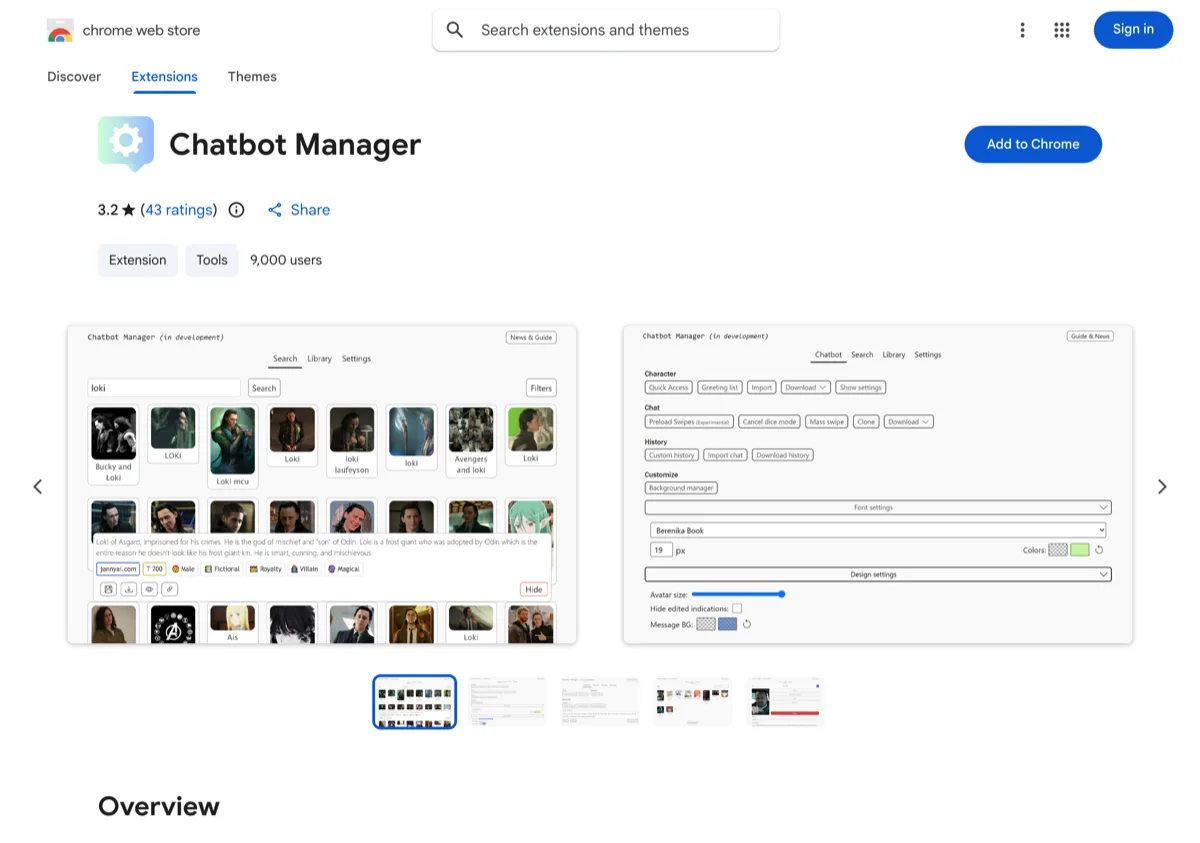
Chatbot Manager is a browser extension (Chrome, Firefox, Edge, Safari) whose docs list Janitor-specific features alongside a Clone / Import - Chat function: it “starts a new chat, inserts the messages of current chat (Clone) or the chat you imported into the new chat,” accepting readable, oobabooga, and tavern formats.
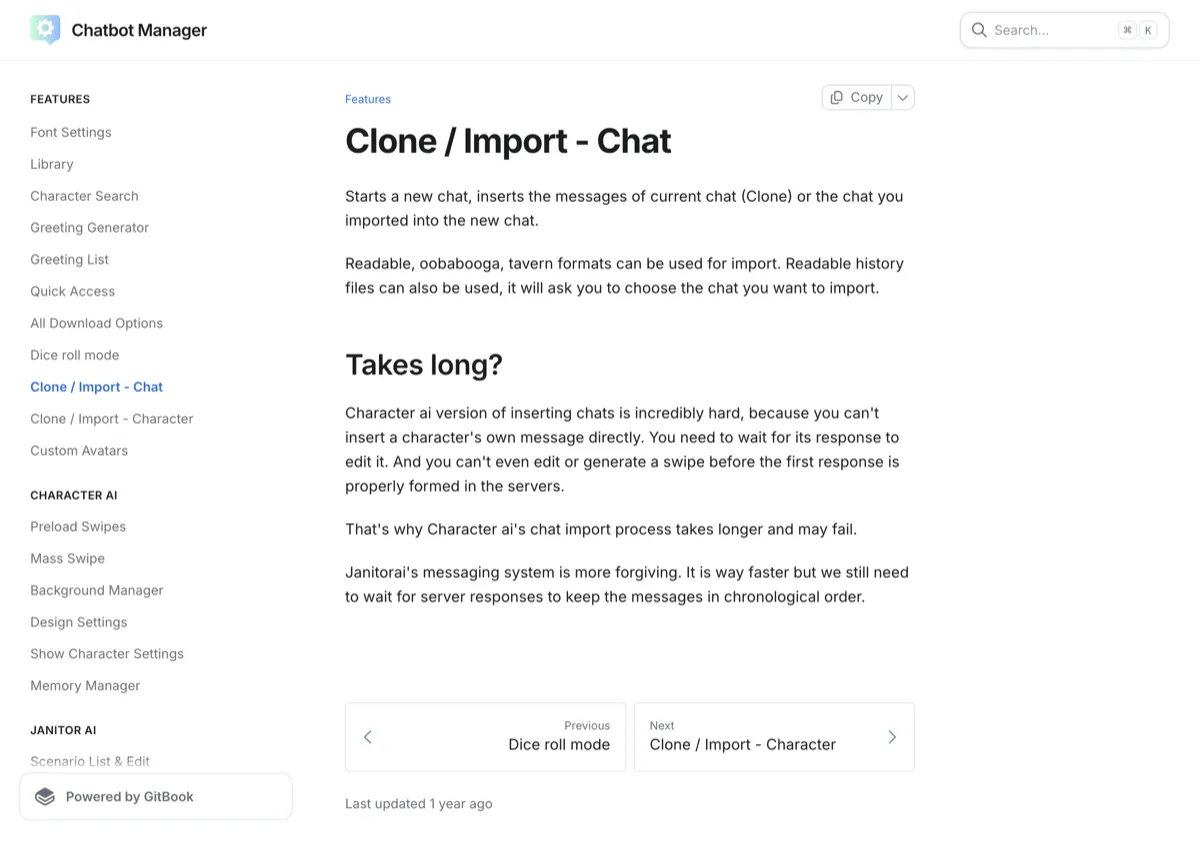
The setup: install it from your browser’s extension store, pin it, log into Janitor, and use the extension’s panel from the chat you want to clone or the character you want to download as a card. Two honest caveats from its own docs: imports run message by message, so long chats take a while (“we still need to wait for server responses to keep the messages in chronological order”), and the docs page itself was last updated a year ago, so expect rough edges when Janitor changes its interface.
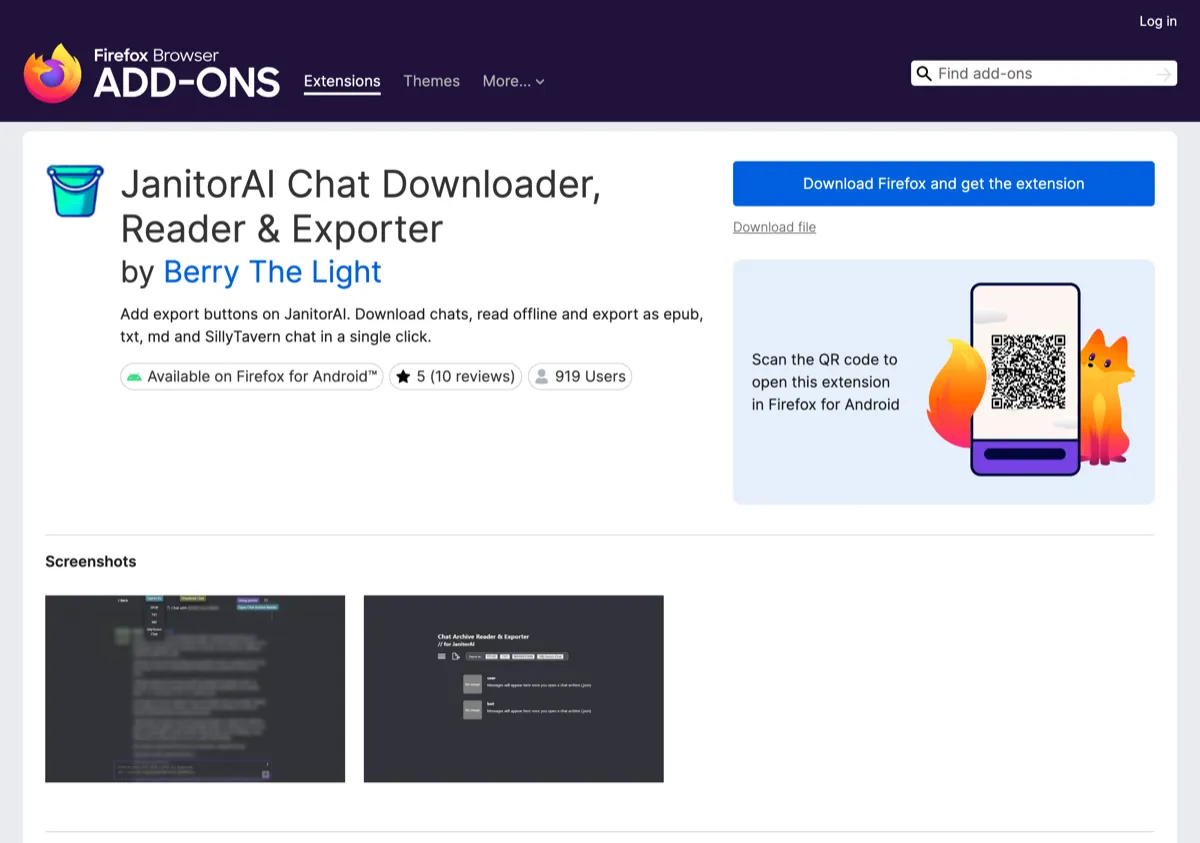
There is also a dedicated Firefox exporter, JanitorAI Chat Downloader, Reader and Exporter, if all you want is a backup file rather than a full manager.
Method 2: Grab your chat logs with Inspect Element
The SillyTavern crowd solved the no-export problem manually, and their method is the one that needs no extension at all. From the thread that ranks first for this search:
- Open your Janitor chat, then your browser’s DevTools (F12), Network tab.
- Reload and find the request “that is just all numbers,” in the original poster’s words: its response is your chat log as JSON.
- Copy the entire response into a new file, for example
janitor_chat.json. - Run it through a converter script to SillyTavern’s
.jsonlchat format. The thread shares a community Python script; the format conversion is mechanical.
The follow-up comment in that thread is the honest summary: “Stumbled across this thread and this was insanely helpful.” It is also fiddly the first time, which is why it stays Method 2 rather than Method 1.
Method 3: The chat transplant method
If your reason for wanting import is that your long roleplay hit the context wall, the community’s answer does not involve files at all. The chat transplant, a 261-upvote guide in Janitor’s own subreddit, works like this:
- Write a summary of everything that matters from the maxed chat: relationship state, key events, running jokes. The guide’s own analogy: “Think of it like a DBZ recap.”
- Start a brand-new chat with the same bot and paste the summary as opening context.
- Reply to the bot’s intro with a short recap of the most recent events plus a scene reset to where you left off.
Two calibration points from the guide’s comment section: the transplant cadence has tightened to “after your 60-70 messages” as of the current context limits, and the tell that it is time is stylistic: “when the bot starts waxing poetic it’s time.” The most-upvoted request under that guide was for a visual version, which is exactly what this page’s step list is for.
Keep the persona short too. Persona tokens eat the same context budget, and the guide’s rule is “short n’ sweet.”
Chats not showing up? The quick checks
Before assuming loss: confirm you are in the right account, hard-refresh, and check Janitor’s status channels for an outage, because chats live server-side and outages are routine enough that the community documents them. If a specific chat vanished and the account is right, Janitor support is the only recourse; there is no local copy unless you made one. That is the practical argument for Method 1 or 2 as a habit, not a rescue.
If you’re exporting because you’re leaving
Exporting a chat is usually the last thing people do before switching apps, so here is the honest version of that conversation. Your Janitor characters can come with you as cards; your chats mostly cannot, and a summary (Method 3’s skill) is the portable version of a relationship.